

Your audience can talk with each other, ask your team questions and vote in polls, on the same page as the captions. Messages and questions are translated for each reader, with See original to read what was written.
Where chat is set
Chat is set in two places, and each page says which:
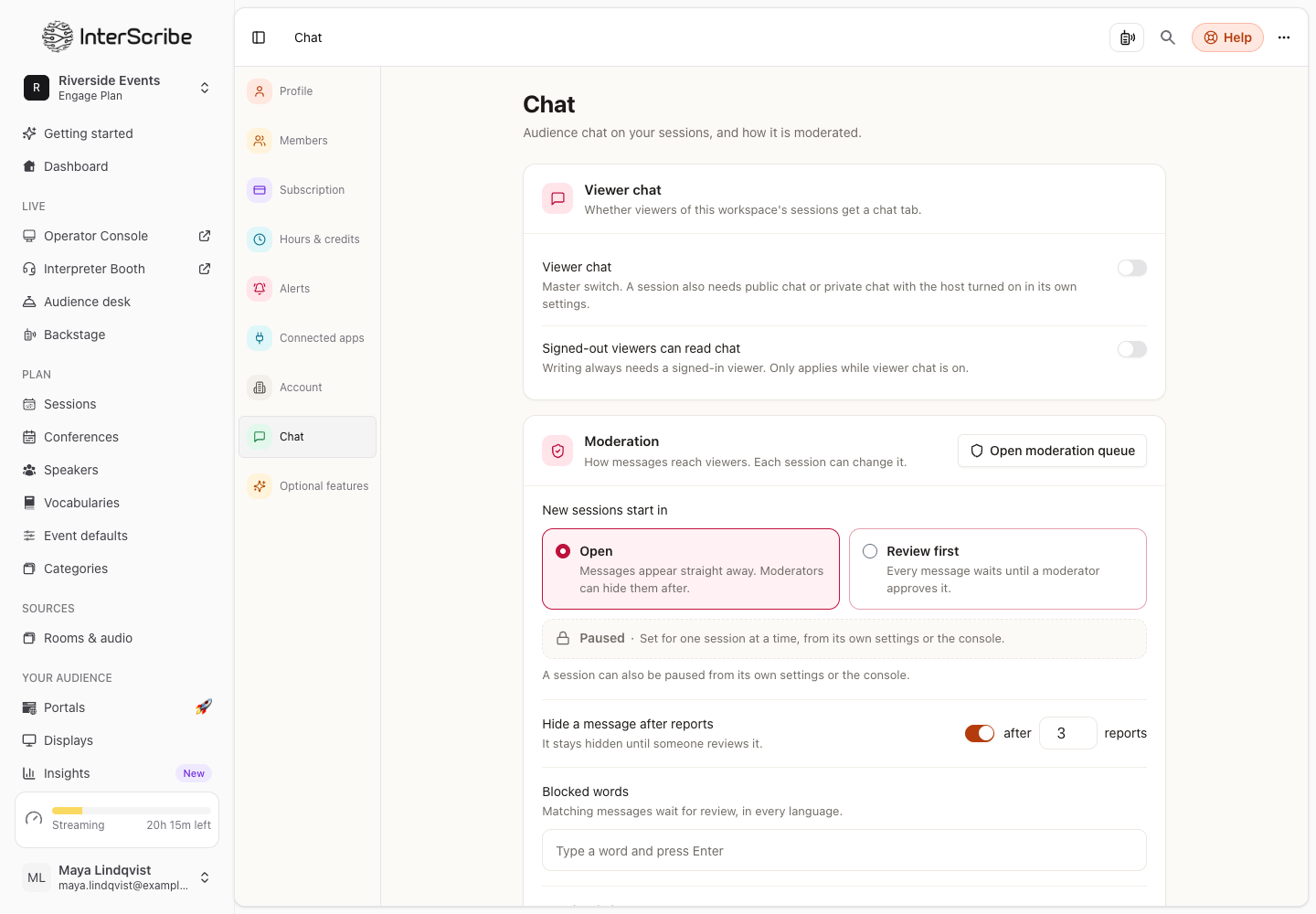
- Settings › Chat is for every session in your workspace: whether chat is on at all, the moderation rules, who your audience can message, posting titles, the card library and crew chat.
- Event Defaults, then each conference, then each session decide how a session's chat behaves: public chat, how messages appear, who may speak, slow mode, Q&A, polls, church tools and cards on a schedule. A new conference copies Event Defaults, and a new session copies its conference or Event Defaults.
Turn on chat for your workspace
- STEP 1Open chat settingsGo to Settings › Chat.
- STEP 2Turn on chat for this workspace
Turn on Chat for this workspace. Off hides chat on every session, whatever its own settings say. On, a session shows chat when its own Public chat is on.
- STEP 3Decide who can read
Signed-out audience members can read chat lets people read without signing in. Writing always needs a signed-in audience member.
- STEP 4Set the moderation rules
Under Moderation rules, add Blocked words and Permitted phrases, and set Hide a message after reports. Every session's chat follows these.
Workspace admins, and each session's Operators and Moderators, can moderate.
Turn it on for your sessions
In Event Defaults (or a conference's settings, or one session's settings), open Chat, Q&A, polls & church tools. The top line says whether chat is on for your workspace; when it is off, nothing here shows until you turn it on.
- Public chat: your audience chats with each other on the event page.
- How messages appear: Open, Review first (a moderator approves each message) or Paused (read-only). Event Defaults sets it for new sessions; a conference or a session that chooses differently says so, with a link to go back to the level it came from.
- Slow mode: how long each person waits between messages.
- Who may speak in chat: who can write. Reading stays open to everyone.
- Q&A: your audience sends questions for your team to answer. You can Review questions before showing them, Allow anonymous questions or Require sign-in to ask.
- Polls: your audience votes in polls your team launches.
Cards
A card is a ready-made message for the chat: a question, a link, a way to give. Cards are kept in the card library in Settings › Chat, and you can also write one wherever you use them: New card in Cards on a schedule (Event Defaults or a conference), and in the Audience desk's Cards tool and card picker. A card written anywhere goes into the same library. Writing cards needs permission to edit account settings (workspace admins have it).
Moderate during the session
Open Audience desk under Respond in the sidebar. A session can also be paused from its own settings or the Console; while paused, viewers can read but not write.
What listeners see
- Chat: the public conversation. The first time they write, listeners choose a Chat name, the name everyone sees next to their messages.
- Q&A & Polls: questions sorted by Popular, Recent or Mine, with upvotes, and the live poll.
- Each message has Report message and Hide this person's messages. A reported message is hidden for the reporter right away, and the author is not told who reported it.
- The chat opens before the session and closes some minutes after it: the page shows Chat closes n minutes after the session. After the session, a replay shows Chat from the live session, read-only.